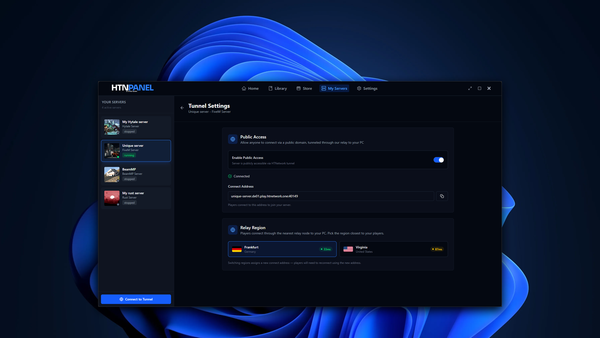
Public Tunnel Configuration Page
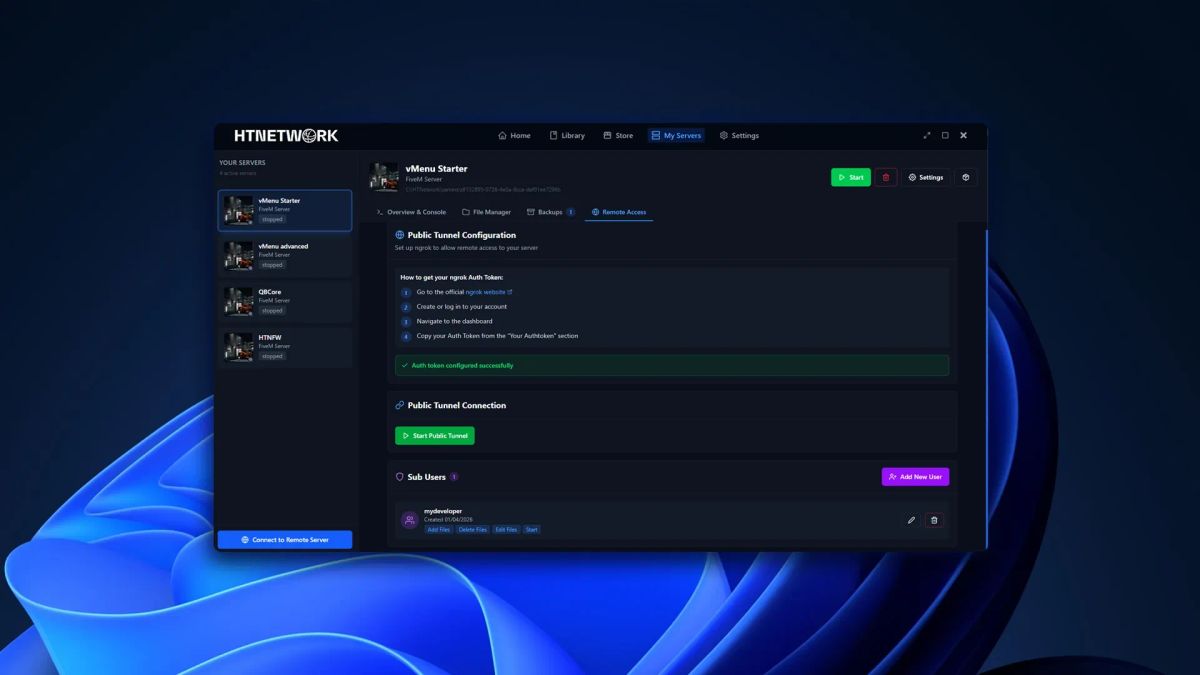
Public Tunnel Config Section
- Small step-by-step guide on how to generate an auth key from ngrok
- Go to the official ngrok website
- Create or log in to your account
- Navigate to the dashboard
- Copy your Auth Token from the “Your Authtoken” section
- Auth Token input field
- Submit button
Public Tunnel Connection Section
- Displays the connection URL after a valid auth token is added
- Start public tunnel button
- Stop public tunnel button
Connected Accounts Section
- Shows all people actively connected to your tunnel
- Display username
- Display connection status
Sub Users Section
- View all current sub-users you have added
- "Add new user" button
- Opens a dialog to create:
- Username
- Password
- Opens a dialog to create:
Connect to Remote App
- Domain input
- Username input
- Password input
- Connect button