HTN-Admin Guide


Hi, welcome to the HTN-Admin guide! Here we will guide you step by step through how the admin menu works, and we’ll provide screenshots along the way.
1) Granting Yourself Admin
- Open HeidiSQL
Launch HeidiSQL and connect to thehtnfwdatabase. - Locate the Users Table
Navigate to the__userstable within the database. - Find Your FiveM ID
Search for your fivem id in the__userstable. - Update Rank
Locate therankcolumn for your Steam hex ID and change it fromusertodev. - Save Changes
Save the changes in HeidiSQL and restart your game session to apply admin privileges.
2) Accessing the Admin Menu In-Game
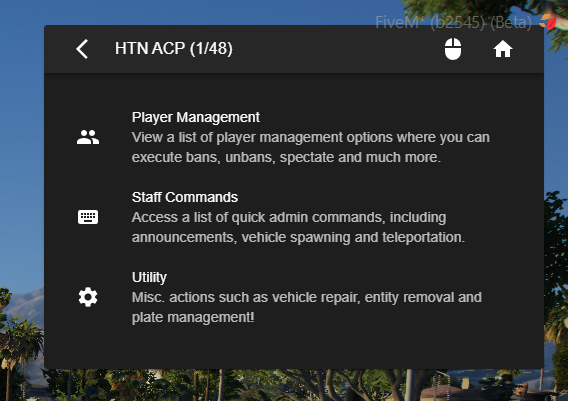
- If you have successfully granted yourself admin, press the F10 key in-game to open the menu.
3) What Each Option Does in the Admin Menu
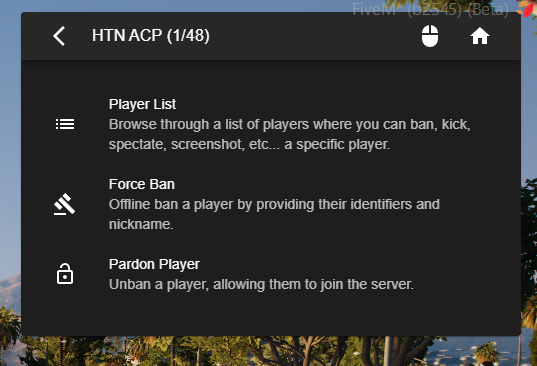
- Player Management
View a list of player management options where you can execute bans, unbans, spectate, and much more.
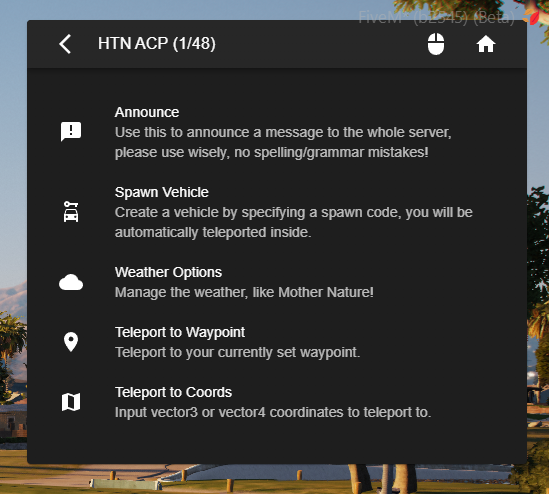
- Staff Commands
Access a list of quick admin commands, including announcements, vehicle spawning, and teleportation.
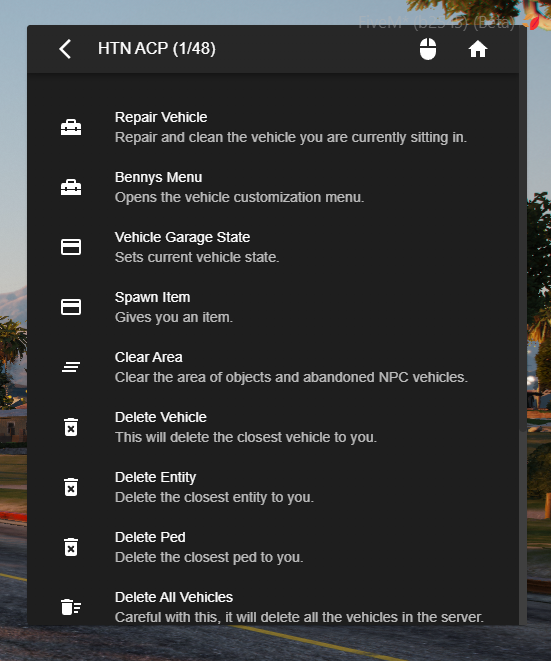
- Utility
Miscellaneous actions such as vehicle repair, entity removal, and plate management!
4) In-Game Commands (Not in the Menu)
| Command | Description |
|---|---|
/setjob (stateId) (job) (rank) |
Sets a player's job and rank on the server. |
/car (model) |
Spawns a vehicle with the specified model. |
/dv |
Deletes the vehicle closest to you. |