How to Upload Mods Larger Than 100MB
If you are trying to upload a mod, map, resource, or server file larger than 100MB, you may not be able to upload it through the browser file manager.
For larger files, you should upload them using SFTP instead.
SFTP allows you to upload files directly from your computer to your server without the same browser upload limit.
Before You Start
Before clicking Launch SFTP, you need to have an SFTP program installed on your PC.
For Windows, we recommend using WinSCP.
You can download WinSCP here:
https://winscp.net/eng/download.php
WinSCP is a free SFTP client for Windows used to transfer files between your computer and a remote server. (WinSCP - Free SFTP and FTP client)
Step 1: Install WinSCP
Download and install WinSCP on your PC.
Once it is installed, you can use the Launch SFTP button from the panel to open your server connection.
If WinSCP is not installed, clicking Launch SFTP may not open anything.
Step 2: Open Your Server on the Panel
Log in to the HTNetwork game hosting panel and open the server you want to upload files to.
This can be your BeamMP server, Minecraft server, FiveM server, or any other supported game server.
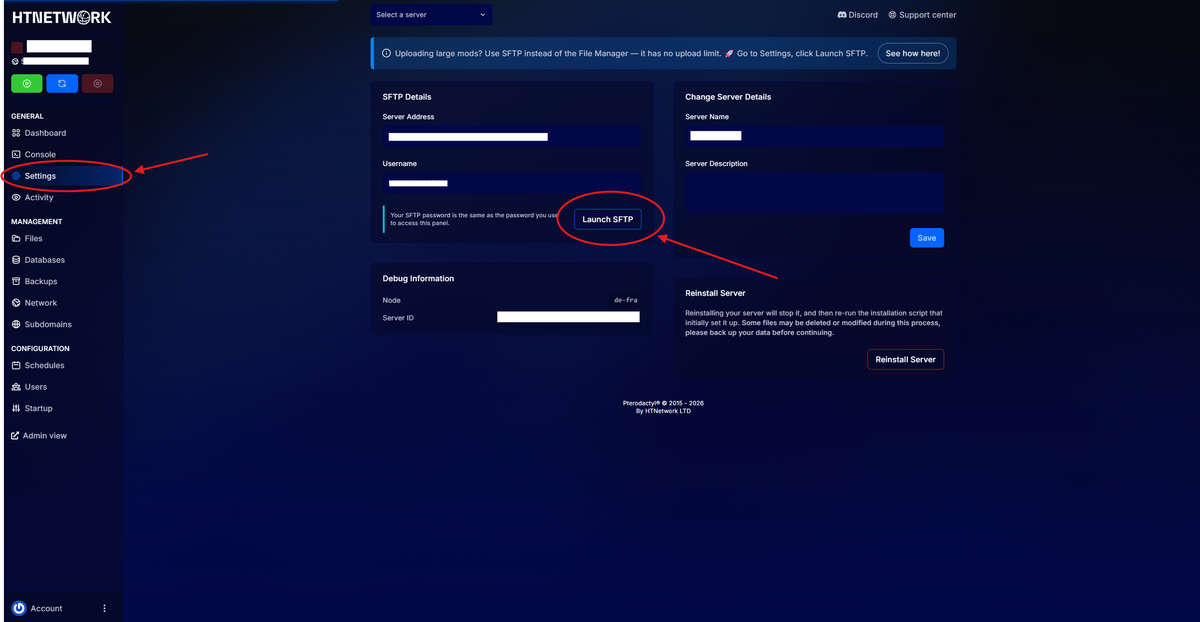
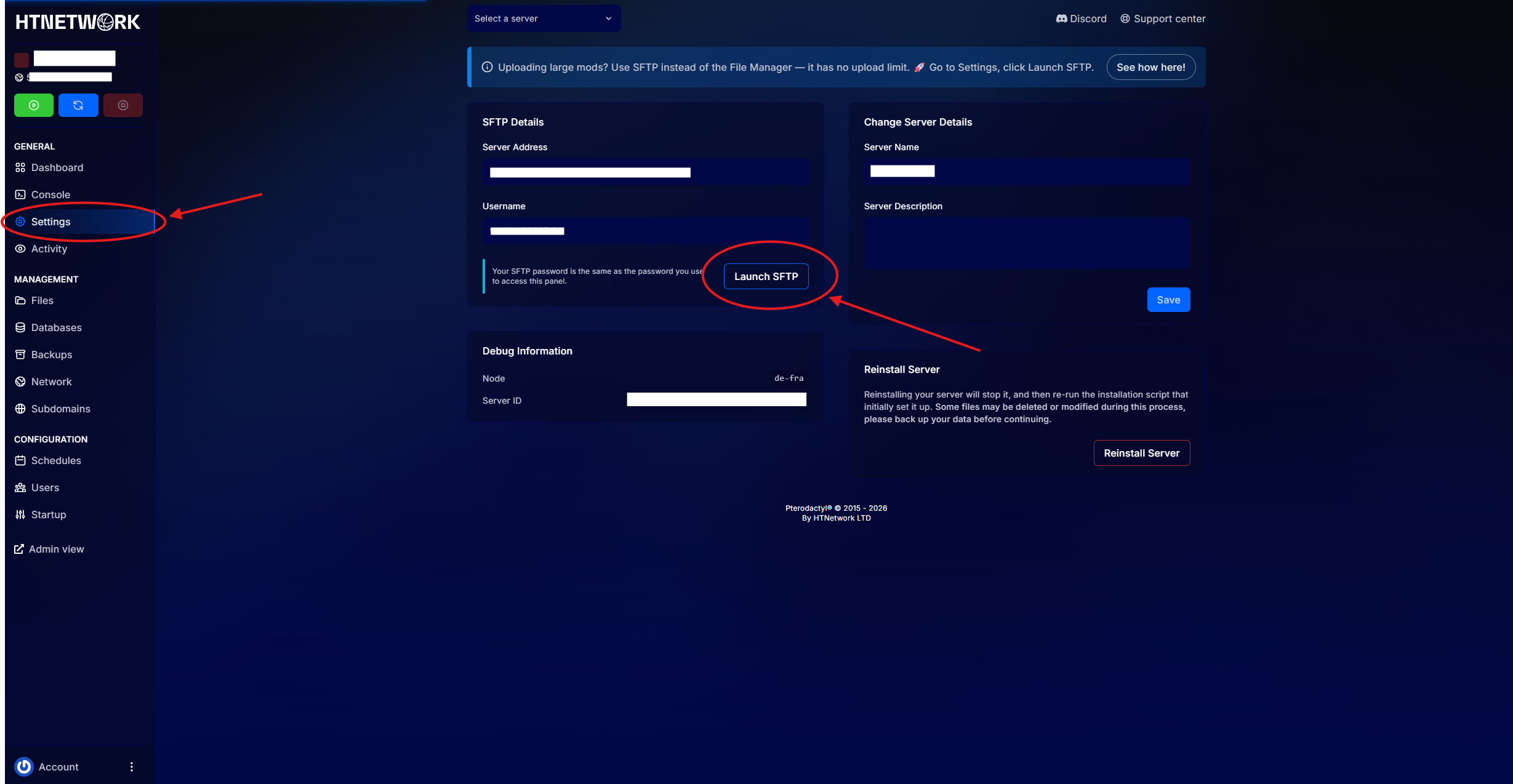
Step 3: Go to the Settings Tab
Once you are inside your server, click the Settings tab.
This is where you will find the SFTP option.
Step 4: Click Launch SFTP
Inside the Settings tab, click Launch SFTP.
This should open WinSCP on your PC.
Step 5: Log In Using Your Panel Details
Your SFTP login is the same as your panel login.
Use the same email and password that you use to log in to the HTNetwork panel.
Once connected, you will be able to see your server files inside WinSCP.
Step 6: Upload Your Mod or Large File
Find the correct folder for the game you are using, then drag and drop your mod, map, resource, or server files into the server directory.
Because you are uploading through SFTP, you can upload files larger than 100MB.
This is the best way to upload large mods or server files that are too big for the browser file manager.
Step 7: Restart Your Server
After your files have finished uploading, go back to the panel and restart your server.
This allows the server to load the new files you uploaded.
Common Issues
Launch SFTP does not open anything
This usually means WinSCP is not installed on your PC.
Install WinSCP first, then try clicking Launch SFTP again.
My login does not work
Your SFTP login should be the same as your panel login.
Make sure you are using the correct panel email and password.
My upload is slow
Large files can take time to upload depending on your internet speed.
Keep WinSCP open until the upload has fully completed.
Need Help?
If you are unsure where to upload your files, or your SFTP connection is not working, please open a support ticket and our team will help you.
Make sure to include the game you are using and the file you are trying to upload.