How to Install Mods on a Hytale Server
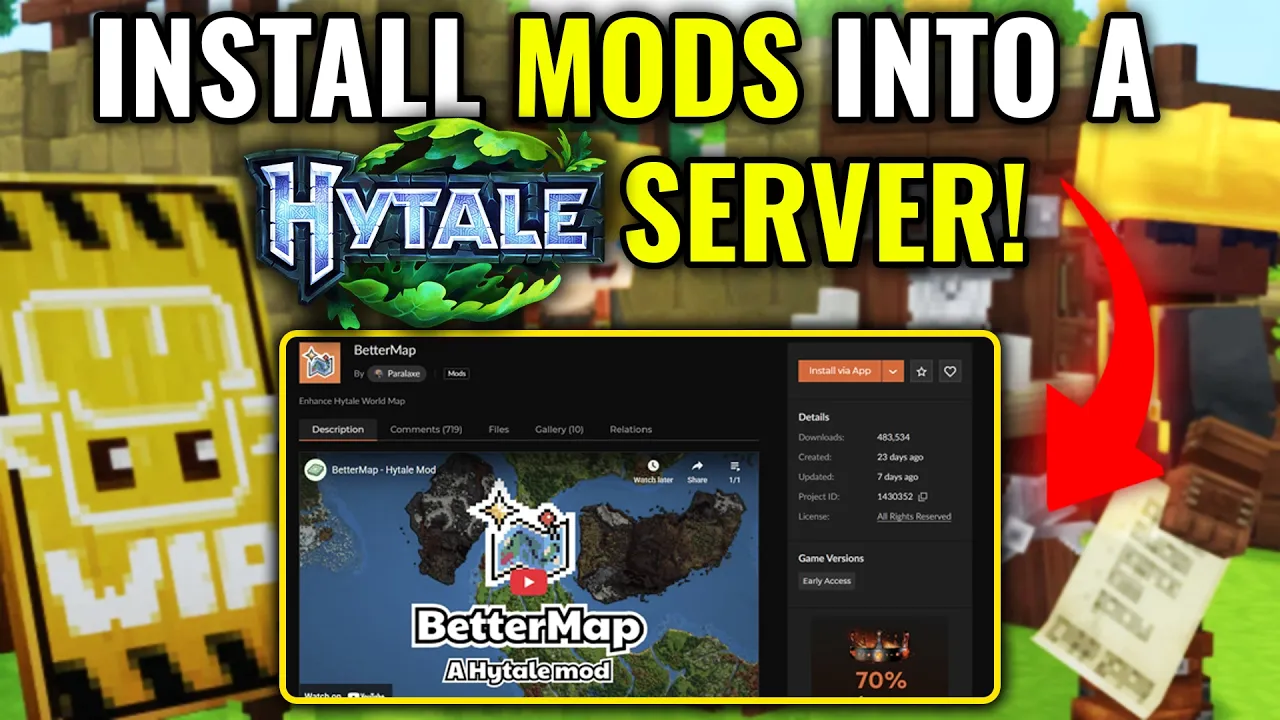
Modding is where Hytale really shines. Whether you want custom gameplay systems, new blocks, RPG mechanics, or quality-of-life tweaks, installing mods on your Hytale server lets you shape the experience exactly how you want it for you and your friends.
This guide walks through the general process of installing mods on a Hytale server, so you understand how it works and what to expect once modding support is fully available.
Watch our video guide!
What You Need Before Installing Mods
Before diving in, make sure you have the basics sorted:
- A running Hytale server
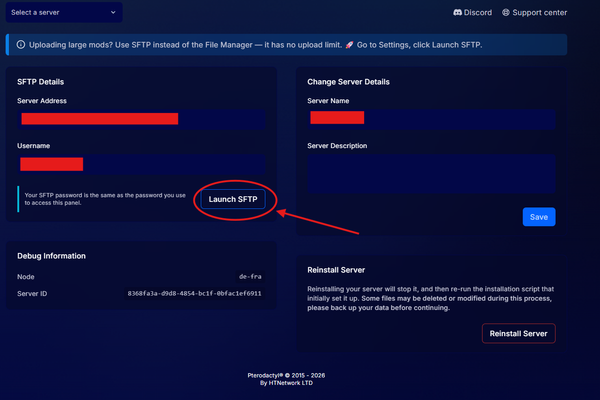
- Server file access (via panel or FTP)
- Compatible Hytale mods (client + server compatible)
- A basic understanding of restarting your server
⚠️ Always check that a mod is designed for server use. Some mods are client-only and won’t work on multiplayer servers.
Step 1: Locate Your Server’s Mod Directory
Most Hytale servers will include a dedicated folder for mods, typically something like:
/mods
or
/server/mods
If the folder doesn’t exist yet, it’s usually safe to create one manually. The server will scan this directory when it starts.
Step 2: Upload the Mod Files
Once you’ve downloaded your mod:
- Extract it if it’s compressed (ZIP, RAR, etc.)
- Upload the mod files into your server’s mods folder
- Keep each mod in its own folder if recommended by the developer
Some mods may include:
- Configuration files
- Dependencies (required libraries)
- Documentation (always worth reading)
Step 3: Configure the Mod (Optional but Recommended)
Many mods include config files that let you tweak settings like:
- Game balance
- Spawn rates
- Permissions
- World behavior
These files are usually generated after the first server start, so if you don’t see them yet:
- Start the server once
- Stop it again
- Edit the newly created config files
Step 4: Restart the Server
After uploading and configuring mods:
- Fully restart your Hytale server
- Watch the server console during startup
- Look for messages confirming the mod loaded successfully
If a mod fails to load, the console will usually tell you why (missing dependency, outdated version, etc.).
Step 5: Make Sure Players Have the Required Mods
If the mod affects gameplay, players may also need the mod installed client-side.
Common scenarios:
- Server-side only mods → Nothing needed on the client
- Gameplay/UI mods → Players must install the same mod version
- Content mods (blocks, items, systems) → Almost always required on both sides
Version mismatches are one of the most common causes of connection issues.
Troubleshooting Common Issues
If something isn’t working, check these first:
- ❌ Mod not appearing in-game → Check folder structure
- ❌ Server won’t start → Look for missing dependencies
- ❌ Players can’t join → Client mod version mismatch
- ❌ Features not working → Check mod config files
When in doubt, remove one mod at a time to isolate the problem.
Final Thoughts
Installing mods on a Hytale server opens up huge possibilities—from custom survival experiences to fully-fledged RPG worlds. Once you understand where mods go, how they load, and how configs work, managing a modded server becomes straightforward.
As the Hytale modding ecosystem grows, expect even better tools, mod loaders, and automation to make the process faster and easier.
Happy modding 🚀